
Data Query Tester
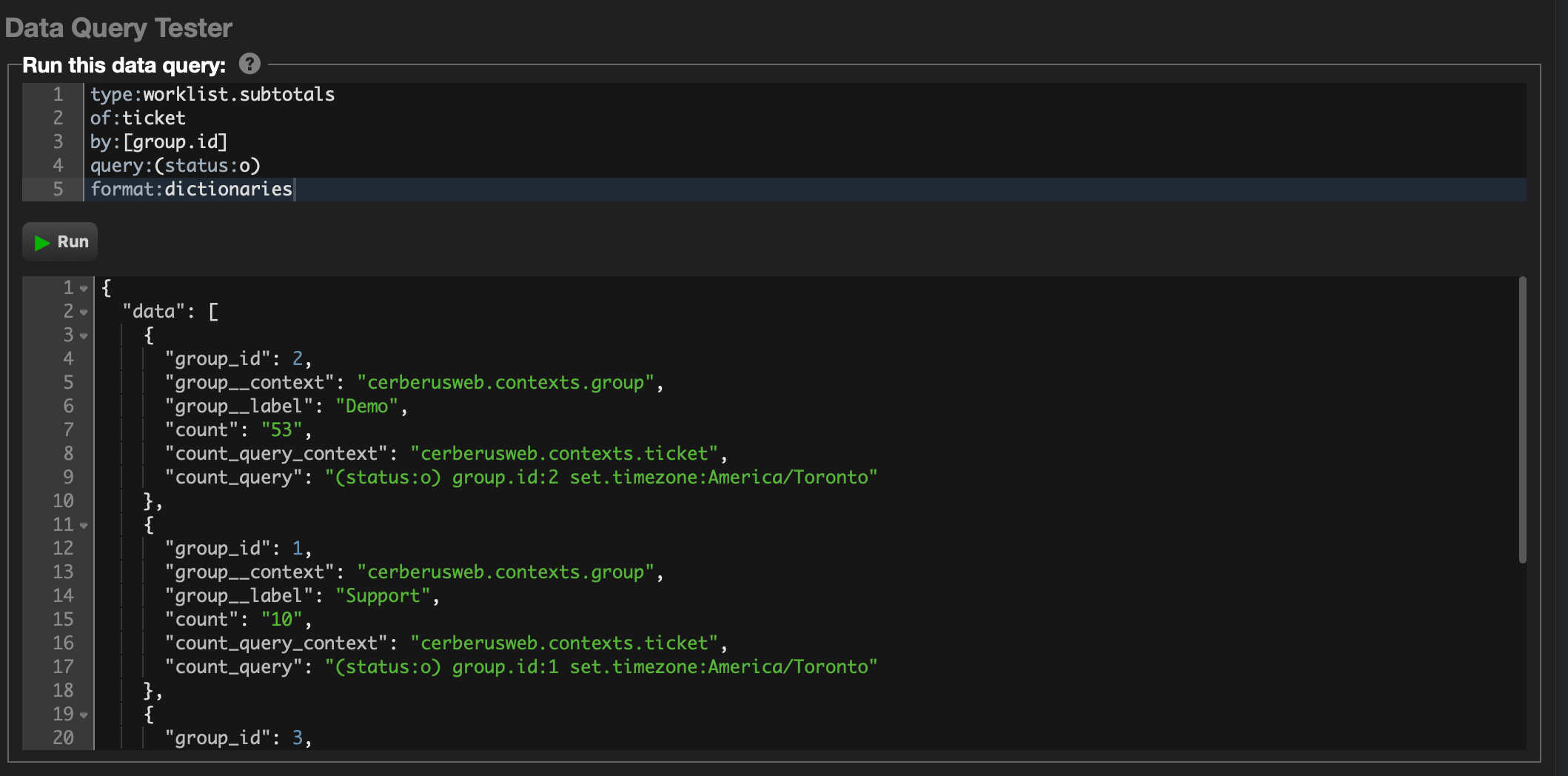
The Data Query Tester runs a data query on its own, outside the widget, sheet, or automation that will eventually hold it.
That separation is the point. A query that returns nothing inside a widget gives you no way to tell a broken query from a working query with no matching data. Here you see the result directly.
Access
Click Setup » Developers » Data Query Tester. This tool is limited to administrators – anyone else gets a permission error rather than a hidden menu item.
The editor
The query editor is Cerb UI's own, replacing the Ace editor used before 12.0.
It highlights two grammars at once, which is what a data query actually is: the query syntax itself, and any scripting tags embedded in it. Tag state carries across lines, so a multi-line {% ... %} block keeps its highlighting.
That isn't cosmetic. The tester evaluates the template before running the query, so a malformed tag fails before the query is ever executed. Nothing is in scope while it does – there are no placeholders here the way there are in a widget or an automation – so literals and pure functions work, and anything expecting a record won't.
Autocompletion
Suggestions come from four places, depending on where the caret is:
| Where the caret is | What you get |
|---|---|
| An empty or typeless query | type: alone, since every data query needs one |
| The body of a query | The keys that type accepts – of:, by:, format:, and the rest |
| A value the type marks as lookupable | Live values, fetched by running a data query of its own |
Inside a nested query:(...) clause |
The full search grammar for the governing of: type |
That last one is the biggest practical gain over the old editor. Inside query:(...) the fields descend exactly as they do in a worklist search bar – nested subqueries, deep filters like sender:org:, all of it – instead of leaving you to remember the grammar unaided.
Press Mod+Space, or use the Suggestions button on the editor's toolbar, to ask for suggestions anywhere.
Keyboard shortcuts
Mod is ⌘ on macOS and Ctrl elsewhere.
| Keys | Action |
|---|---|
Mod+Space |
Show suggestions |
Mod+F |
Find |
Mod+D or Alt+D |
Delete the current line |
Alt+↑ / Alt+↓ |
Move the current line up / down |
Tab / Shift+Tab |
Indent / dedent |
Mod+Shift+↓ / Mod+Shift+↑ |
Grow / shrink the editor |
There's no shortcut for running the query – use the Run button.
Results
Results arrive as pretty-printed JSON in a read-only Cerb UI JSON editor: highlighted, foldable at any bracket with Mod+[ and Mod+], and searchable with Mod+F. Long lines scroll rather than wrap, so the structure stays readable.
The response is whatever the data query itself returned, with no wrapper around it.
Errors appear in the results panel, not as an alert. A bad type:, an unknown
field, or a missing type: comes back as an error object, and a broken
scripting tag comes back as a quoted message. Either way the place to look is the same one you
read results in.
Nothing here is cached. Every Run executes the query fresh, which is what you want while iterating – but it does mean the tester can disagree with a widget showing you a cached copy of the same query.
The tester imposes no limits of its own. What bounds a large result is the data query's own paging, such as limit:, and ultimately PHP's execution time and memory settings.
Agent pane
The Data Query Tester can host an agent pane – a chat that splits the screen beside the editor and can work on the query in front of it. Drag the divider to change the balance.
The pane appears once an agent is enabled on the
data_query surface -- a pane with nothing to launch hides its own toggle,
so there is no agent affordance here until you turn one on. The agent also needs an
agent model under
Search » Agent Models, without which the chat opens but every turn errors.
Enable an agent here by giving it a data_query block under components: in the AI tab of its worker record:
components:
  data_query:
    description: Help writing data queries
The agent's automation must use the interaction.worker.agent trigger, which is the only one offering the uiCommand element these commands run through.
An agent here has five commands:
| Command | What the agent can do |
|---|---|
getEditorValue |
Read the query you're working on |
setEditorValue |
Replace it wholesale |
editField |
Replace one snippet, which must match exactly once |
grepField |
Search the query and get back matching lines |
highlightLine |
Scroll to a line and flash it |
editField matters more than it looks. An agent that can only replace the whole query has to reproduce every line it isn't changing, which is how a long query loses a filter nobody asked it to touch. A single-snippet edit changes what it names and leaves the rest alone.
The agent can neither run the query nor see the results. There's no run command in that list, and no command that returns output -- the results panel is only ever filled by a person clicking Run. An agent that needs to know what a query returns evaluates one of its own server-side and tells you in the chat, rather than driving the screen and reading it back.
Because this page never saves anything, an agent's edit exists only in the browser. Once one lands, leaving the page warns you first – which is the only thing standing between an agent-written query and a stray reload.